

Review open and pending shift swaps
The TimeForge Manager mobile app can help you keep tabs on which shift swaps are still open and which ones are waiting on manager approval. All it takes is a few taps.
Shift Swaps are those that have been ‘given up’ and made available to be ‘picked up’ by other employees. When an employee picks up a shift swap, they are not responsible for that shift until the swap has been approved by management.
Shift swaps must be approved or denied on the TimeForge website, and employees can choose how to be notified about the approval of a swap.
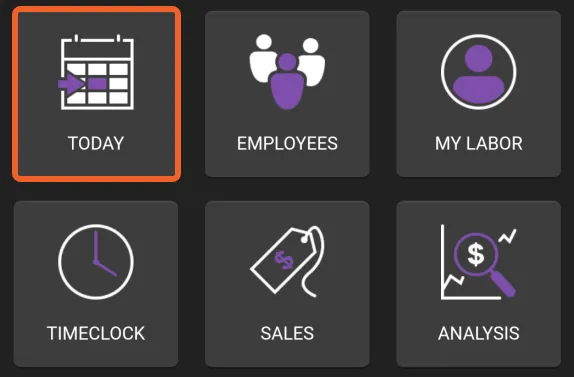
Tap the TODAY tile
Section titled “Tap the TODAY tile”Open and Pending Shift Swaps are accessible from the Today page in the app. From the home screen, tap TODAY.
Open Shift Swaps
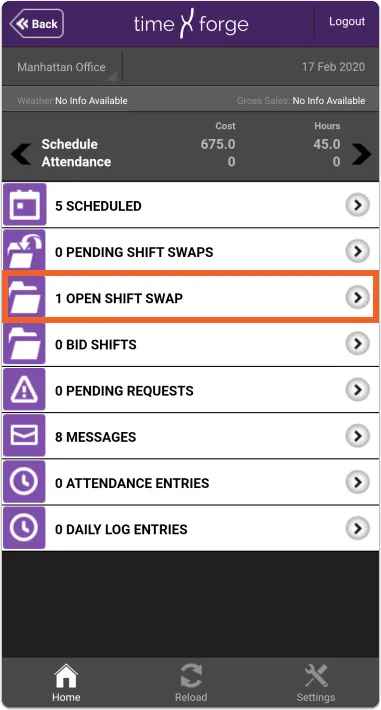
Section titled “Open Shift Swaps”When an employee has given up a shift, you will see a notification next to Open Shift Swaps on your Today page:
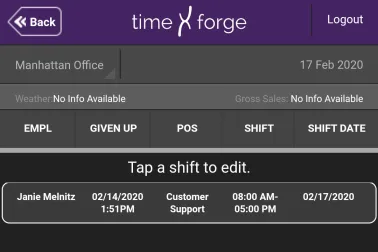
Tapping Open Shift Swaps will show you a list of shifts that have been given up and are waiting to be picked up by other employees:

Pending Shift Swaps
Section titled “Pending Shift Swaps”When another employee picks up an open shift, you will see a notification next to Pending Shift Swaps:
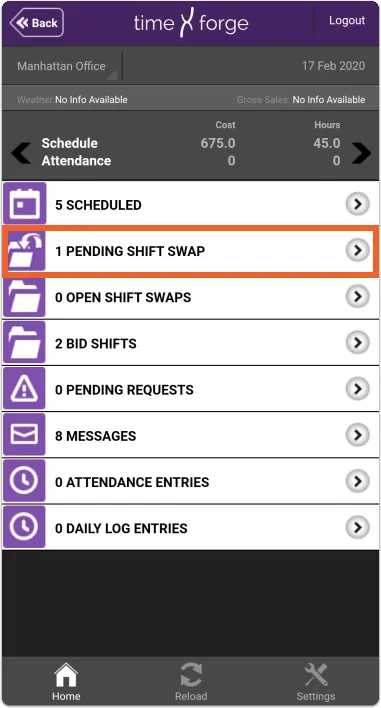
Tapping Pending Shift Swaps will show you a list of those waiting on manager approval.
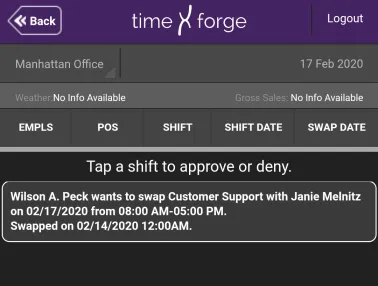
Tapping a shift will redirect you to the TimeForge website where you can approve, deny, or edit the shift swap.