
View, add, or edit employee shifts
The TimeForge Manager mobile app allows you to not only view shifts on your mobile device but also add new shifts, edit existing shifts, or remove them from the schedule entirely. Here’s how.
Tap the TODAY tile and select Scheduled
Section titled “Tap the TODAY tile and select Scheduled”Employee shifts are accessible from the Today page in the app. From the home screen, tap TODAY.
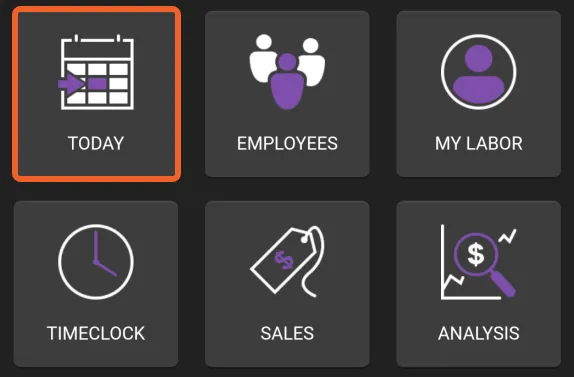
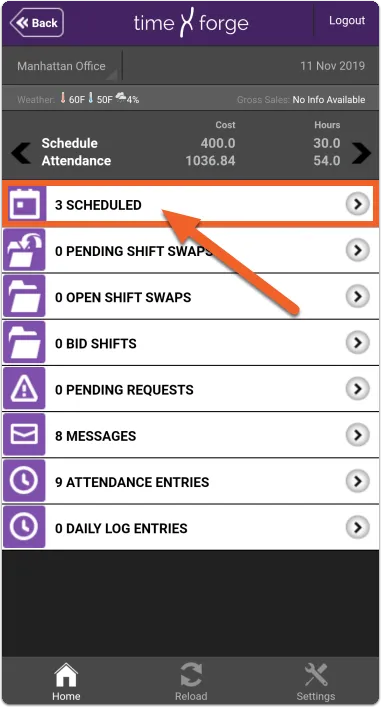
Then, tap Scheduled.
View employee shifts
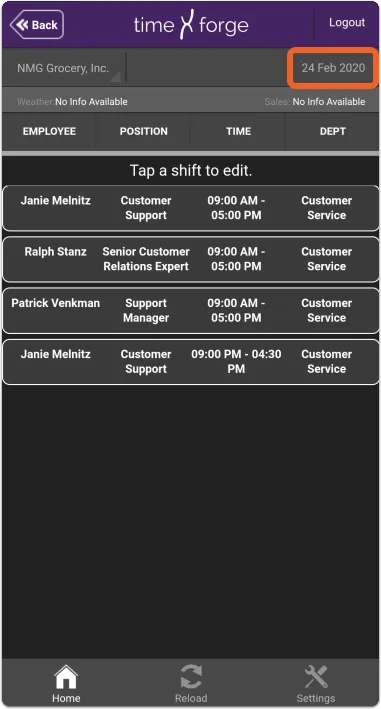
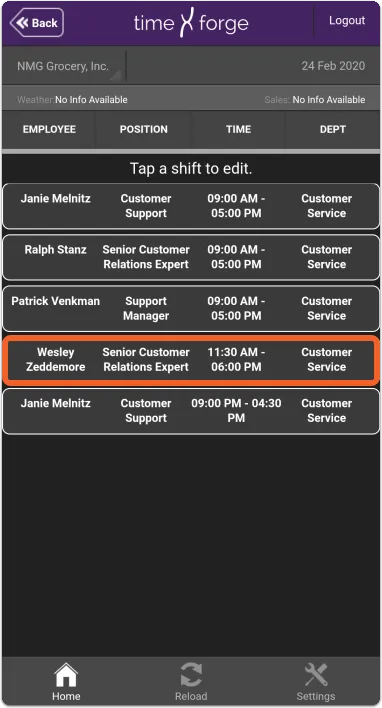
Section titled “View employee shifts”You will see a list of employees scheduled to work for the selected date. By default, the page will open to the current day, but you can tap the date in the upper right corner to select a new date.
Add or edit employee shifts
Section titled “Add or edit employee shifts”Tap on a shift to bring up a list of options. You can:
- Add a New Shift (will allow you to select an employee and other shift details)
- Edit this Shift
- Delete this Shift
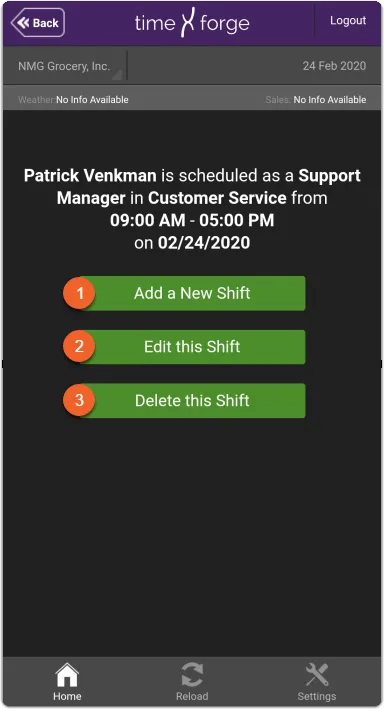
Each of these options is described in more detail below:
Add a New Shift
When adding a new shift, the app will prompt you to select the department and schedule you wish to add the shift to. You’ll then be able to select the appropriate employee, position, and start and end times.
In this example, we’re adding a new shift to the Customer Service schedule for employee Zeddemore:
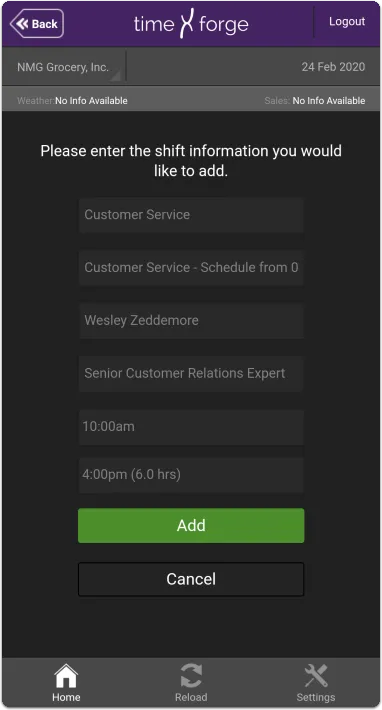
When you’re done selecting the details for the shift, tap the Add button to add the new shift to the schedule.
Edit this Shift
Edit allows you to select a new employee to work the shift or adjust the start or end times. For this example, we’re going to keep employee Zeddemore on the schedule, but we just need to adjust his start and end times.
First, we’ll select the new shift from the list:
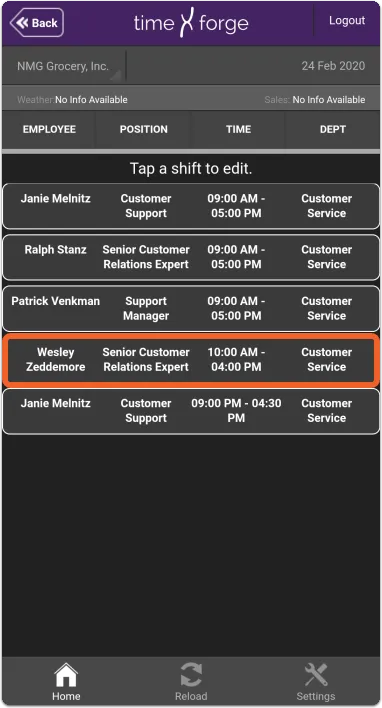
Tap the Edit this Shift option, then select the appropriate details:

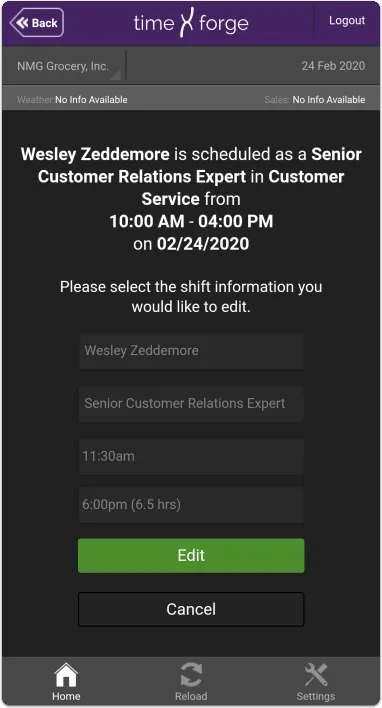
When done, simply tap the Edit button to commit your changes.
Delete this Shift
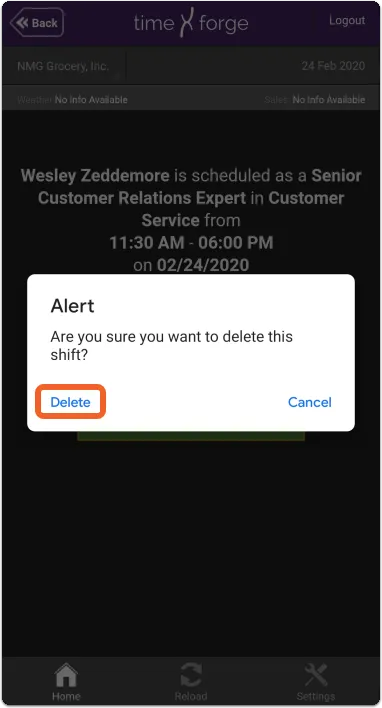
Delete will completely remove the shift from the schedule. When deleting a shift, you will be prompted to confirm this choice.
Let’s say we want to remove our new shift. First, we would select it from the list of scheduled shifts, then we would tap the Delete this Shift option.

Tap Delete to confirm your choice or Cancel to back out.